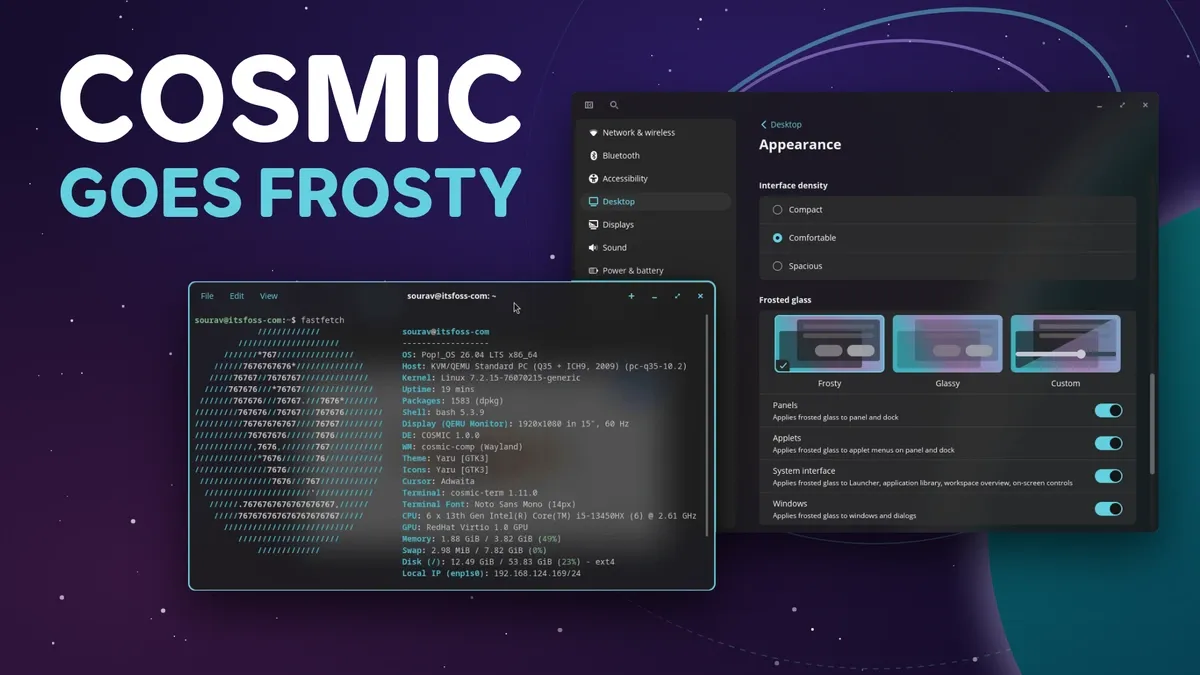
System76's COSMIC desktop environment took more than three years to build before it became the default desktop of Pop!_OS 24.04 LTS last year. Since then, they have regularly put out point releases that have added new improvements.
All that is thanks to a sustained development effort and constant user feedback integration.
As for Pop!_OS, it builds its LTS releases on top of Ubuntu's, following a hybrid release path where users upgrade key system components when a new version arrives.
And, if that got you thinking, "I gotta try their latest release," well, then you are in luck as they have just announced the Pop!_OS 26.04 LTS release. It is based on Ubuntu 26.04 LTS and is available in multiple flavors, covering both x86_64 and ARM systems.
Pop!_OS 26.04 LTS📋Upgrades from 24.04 LTS to 26.04 LTS will be made available in December.Before you decide on it, here are some changes in this release that are worth knowing about. Several of them already reached Pop!_OS 24.04 LTS through regular COSMIC updates, and the new release brings them together with a newer base.
1. Linux 7.2
The Pop!_OS 26.04 LTS release is powered by this kernel, more specifically, Linux 7.2.15, which is a point release.
It brings niceties like a scheduler feature that groups related tasks onto cores sharing the same last-level cache that can help latency-sensitive work and games on processors with more than one cache domain.
Laptop owners get support for more ASUS ROG and TUF Gaming models, battery charge limiting on Lenovo machines, and webcams on some Ryzen laptops.
AMDGPU gains early HDMI 2.1 support, and Realtek USB Ethernet adapters now handle 10 Gbit speeds and energy-efficient Ethernet.
2. COSMIC upgrades
For the desktop, COSMIC 1.11 is included that tweaks how windows behave. A fullscreen window now stays fullscreen when you move it to another workspace, and sticky windows stay on top of fullscreen ones.
Finding apps is quicker too, since you can start typing in the workspace overview, and it brings up the launcher or the app library, depending on what you pick in COSMIC Settings.
You can even neatly stack windows to get quick access to a group of apps from the same tiled layout. Just ensure that you drag and drop the windows only when the "Stack Windows" dialogue comes up.
Then there is Frosted Glass, a visual addition that arrived with COSMIC 1.3 and applies across the desktop. You can tweak it to be a nearly opaque look, a see-through one, or a subtle and balanced one.
3. Better store app
The COSMIC Store has been fully redesigned, and pages now open right away because it no longer refreshes updates each time you switch pages, reusing what it already loaded.
Startup is also quicker because it keeps its Explore results saved on disk, and it now pulls from all the added software sources at the same time. A new rpm-ostree backend is also available.
4. Monitoring made easy
Included as part of a fresh installation is the new COSMIC System Monitor app that puts CPU, memory, GPU, disk, and network usage on a single page along with applications and processes.
Each resource lists the process using the most of it, and opening one brings up charts next to the processes behind it. The app is built with COSMIC's own toolkit and blends in well with the rest of the desktop.
When I tried using it on a virtual machine, it bugged out badly, showing me artifacts when I launched or moved the app; this shouldn't be an issue on bare metal.
5. File manager tweaks
The file manager, COSMIC Files, has received a number of changes since the 24.04 launch, starting with the ability to open several folders in separate tabs and drag and drop those tabs around.
Right-clicking now gives you "Move to" and "Copy to" options, and holding Shift there copies an item's path. You can also paste images, videos, and text straight from the clipboard.
Network locations can be typed into the path bar and completed with Tab, and the Recents page can be switched off or cleared. Text files get previews as well, and deleting from the Trash folder now calls for a confirmation first.
6. Automatic system updates
Running automatic system updates is possible now; you can either switch it on during the initial setup on a fresh installation or later under the "System & accounts" page in Settings.
Inside the "System & application updates" entry, update notifications can be set to Disabled, Daily, Weekly, or Monthly, with granular controls for fine-tuning when the updates themselves run.
7. Constellations theming
Finally, if you go into the "Desktop" page in Settings or right-click on the desktop and select "Desktop appearance..." then click on "Appearance," you get access to the Constellations.
These are the set of bundled looks that cover the fonts, icons, accent colors, and wallpaper in one pick. You could say these are similar to Global Themes on KDE Plasma if you want to draw a parallel.
Dark and Light each have a set of their own to pick from, and clicking one swaps the wallpaper and accent color on the spot, with the window borders following along.
If you go for the plain ones with the COSMIC branding, even the dock icons turn single color. You can also have it switch between the two automatically, and each pick keeps whatever you set for it.
And if none of them suit you, there's an "Import theme" button for bringing in your own.
Suggested Read 📖: Kiwi is a new KDE Plasma terminal that you should keep an eye on.